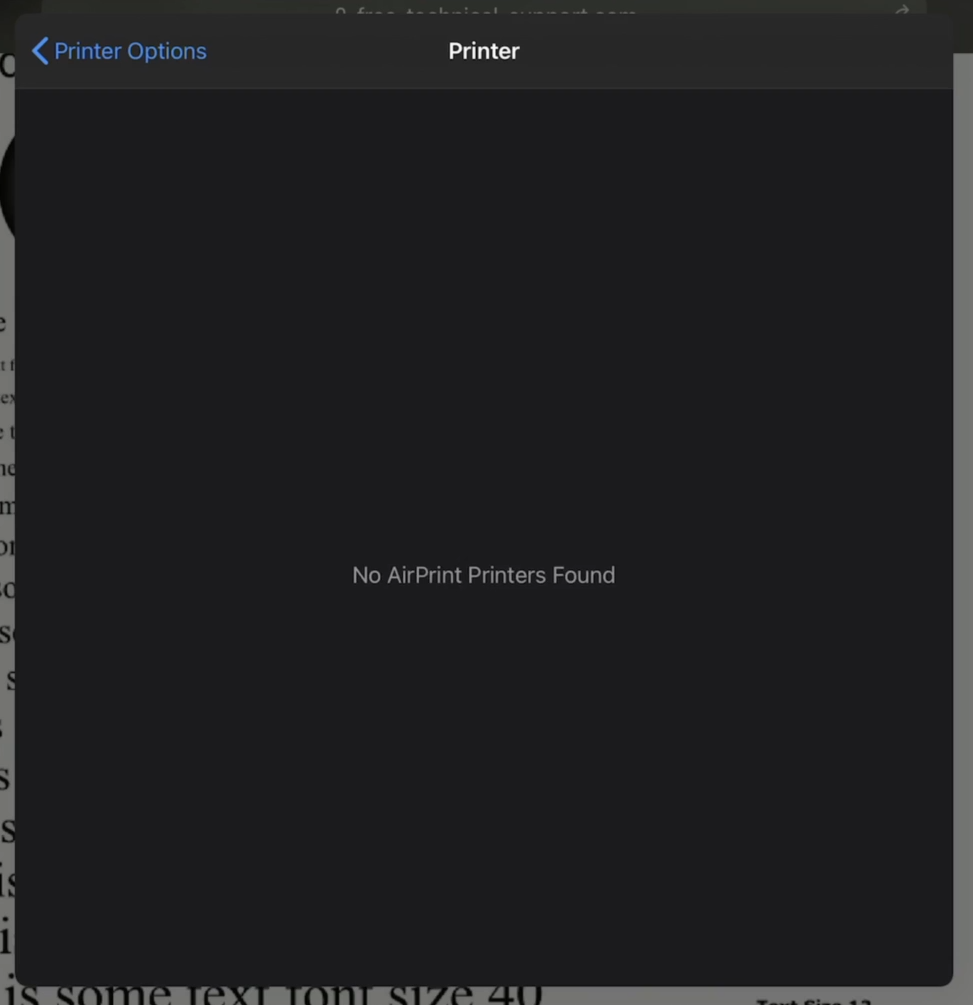
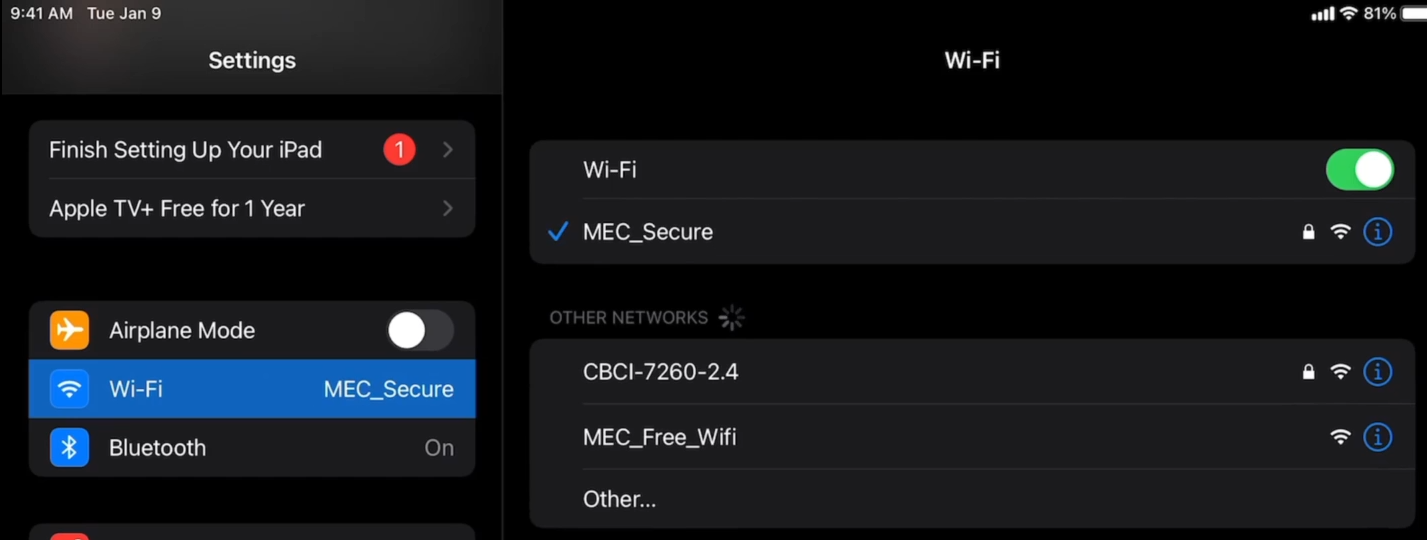
If you are trying to print on your iPad and you get the error, "No AirPrint Printers Found". The first thing to check is that your iPad is connect to the MEC_Secure Wi-Fi network.
In order to do this, go to your home screen and go into settings.
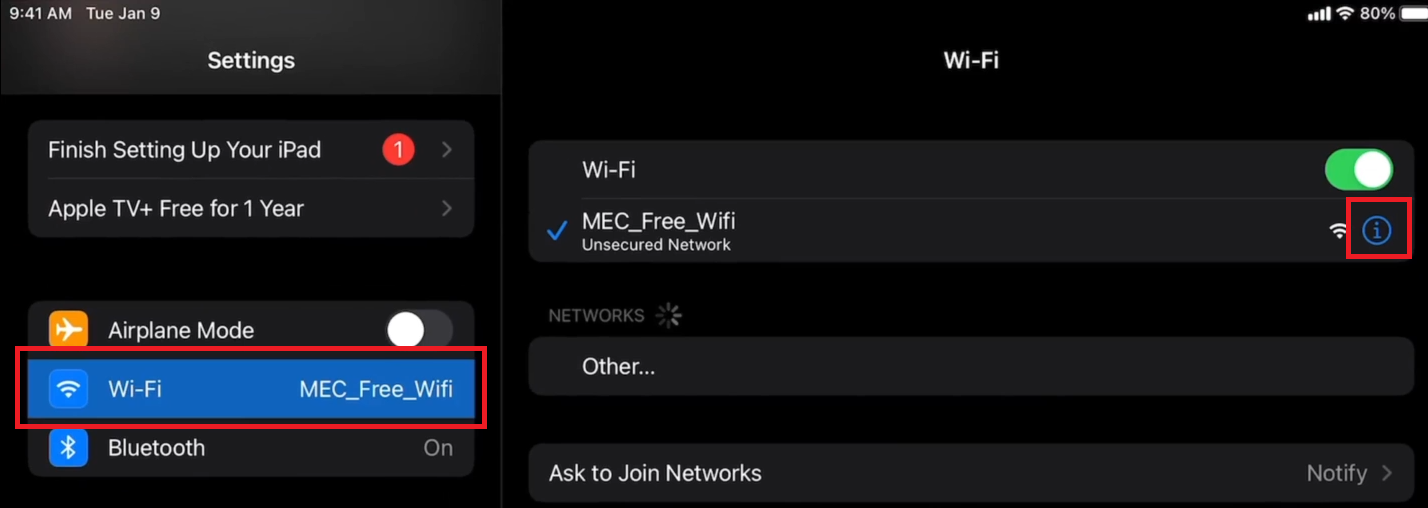
On the left hand side of the screen, locate the Wi-Fi setting and verify whether it is connected to MEC_Secure or something else, if it is anything other than MEC_Secure, tap on the settings for Wi-Fi to bring up the menu on the right side of the screen and click on the ⓘ icon beside the network you are connected to.
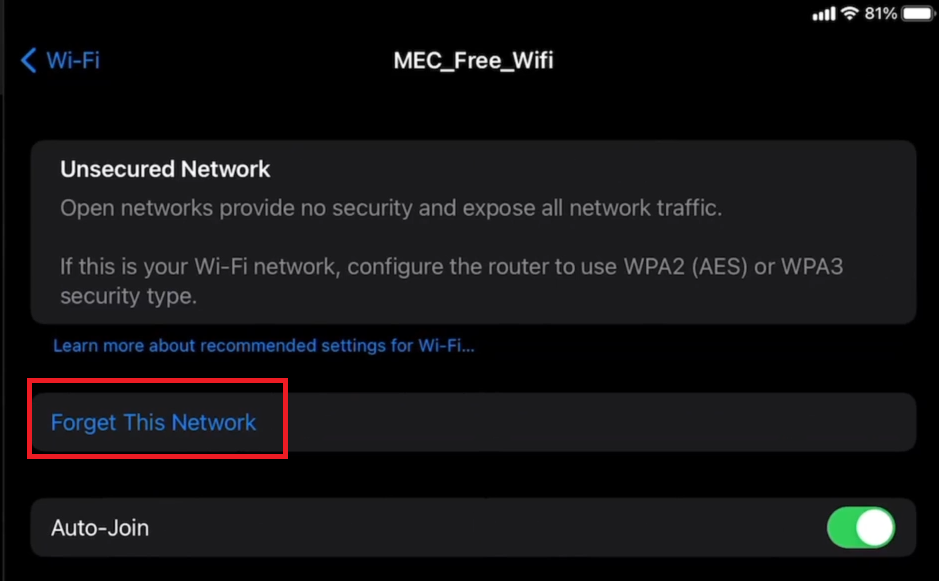
On the settings page for the network that comes up, tap "Forget This Network". And then again, tap "Forget" in the confirmation dialog box that comes up.
It should automatically connect to MEC_Secure (if not, repeat the above steps for the network it does connect to). After this, the printers for the location you are at should show up.
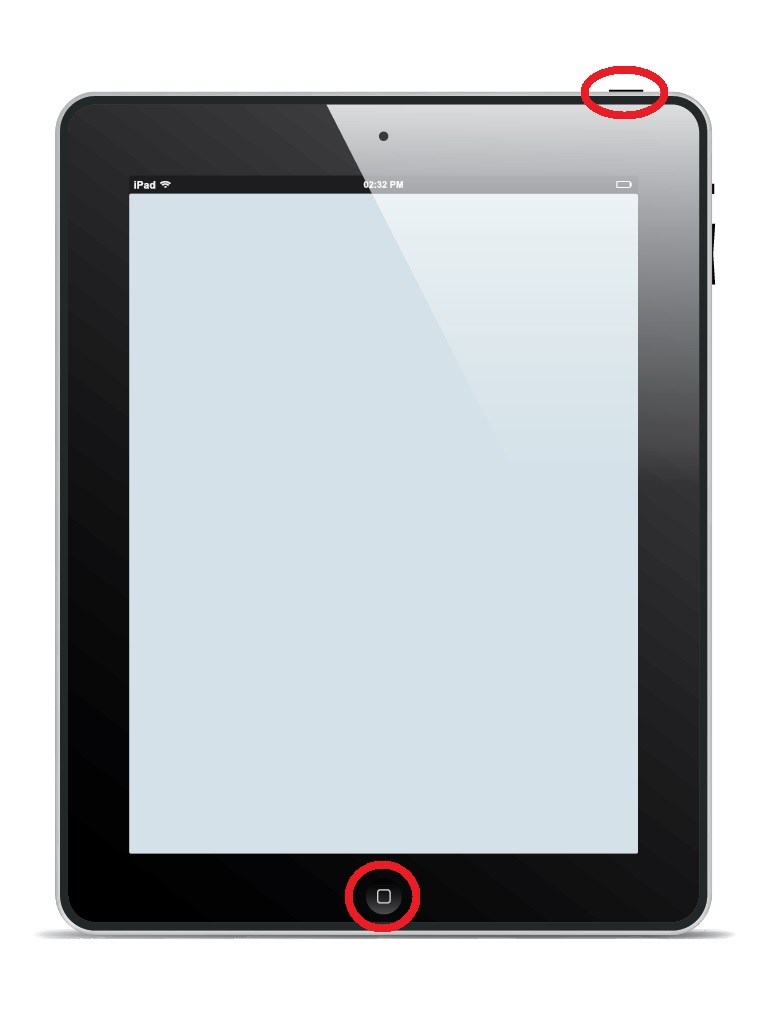
If you still do not see the printers showing up, you may need to hard reset your iPad. To do this, hold down the "Home" and "Lock" buttons on your iPad for 30 seconds. The iPad will restart itself after about 30 seconds and you can release the buttons once the Apple logo appears on the screen.
Comments