Start Univerge Blue Connect using the icon on your desktop. If the icon is missing, reboot your computer and wait a minute after logging in and it should appear. If it does not, call IT.

Put in your email for your login, and then put in your password. Initial password is “MECistheplacetobe!” without quotes.
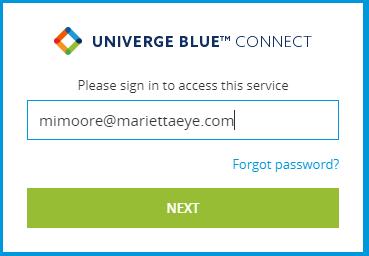
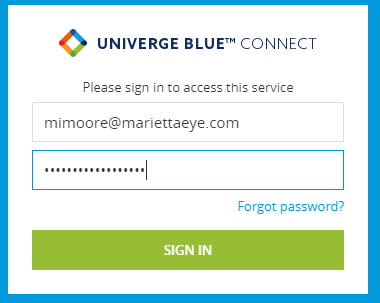
Upon initial login you will be notified your password has expired and you will put in a new password to use for logging in. Pay attention to the password guidelines that appear to the right (if they don’t appear increase the size of the window). They will check off requirements as you meet them. Hit Save once you have your password entered.
It will take you back to the initial login window, so repeat the above steps. If it tells you your new password is wrong, try closing the app and reopening it and repeat. If it sill won’t take the new password, contact IT.
On first login you will get a welcome screen talking about the features of the new system, you can review the info there and then click next.
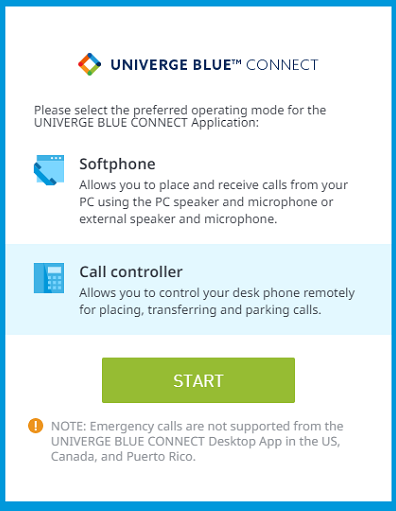
On this screen, if you have a physical phone on your desk and no headset for your computer, you will choose “Call Controller”. This allows the app to control your physical phone for answering or making calls. If you have no physical phone and use a headset with your computer, you will choose “Softphone”. This allows your computer to act as your phone.
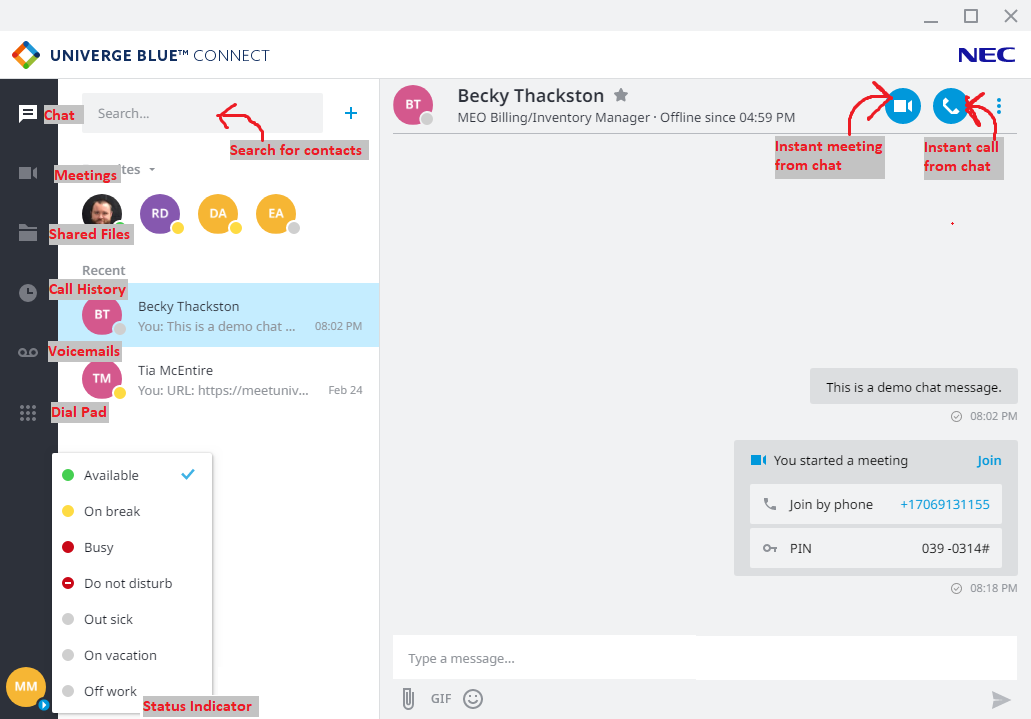
The app will launch with the chat interface open. Along the left side of the screen are icons to access the different interfaces as well as your availability status. When in a chat you have access to instantly start a meeting with someone, they’ll just need to click the “Join” link in the chat, useful for sharing screens.
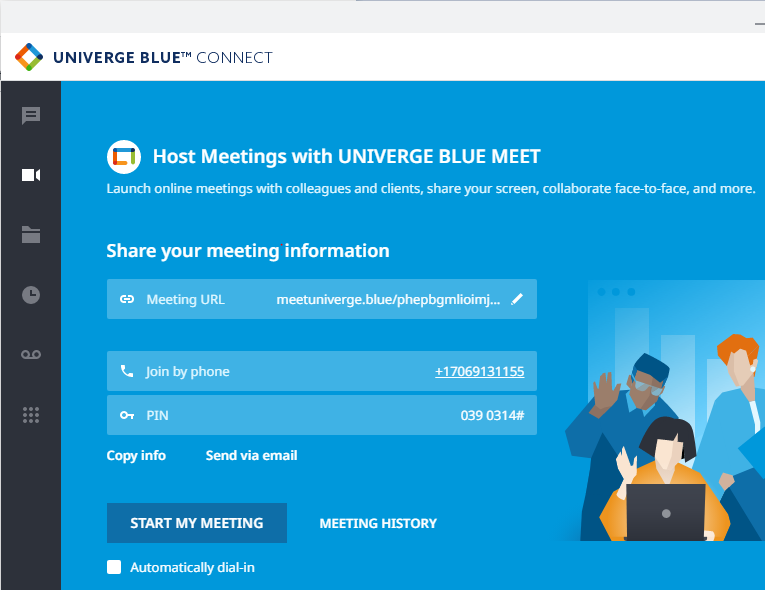
The Meeting interface allows you to quickly create a meeting including a conference bridge people can dial into (including outside the company). You can click Copy info to copy all of the required info to your clipboard so you can paste it into an email and send out to participants. Meetings can be recorded and emailed to participants along with any chat and notes taken during the meeting, useful for training sessions.
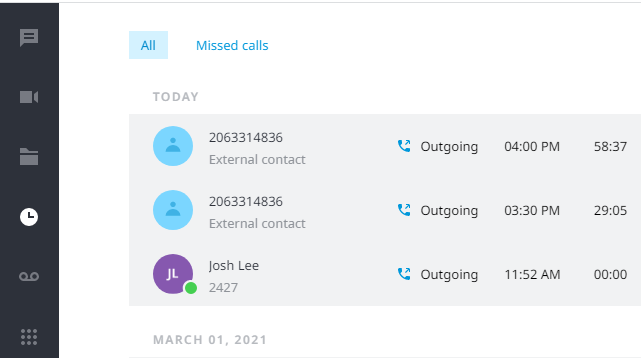
Call History displays placed and received calls, and allows you to filter only missed calls. It displays the other party (internal or external), which direction the call was going, the time, and length.
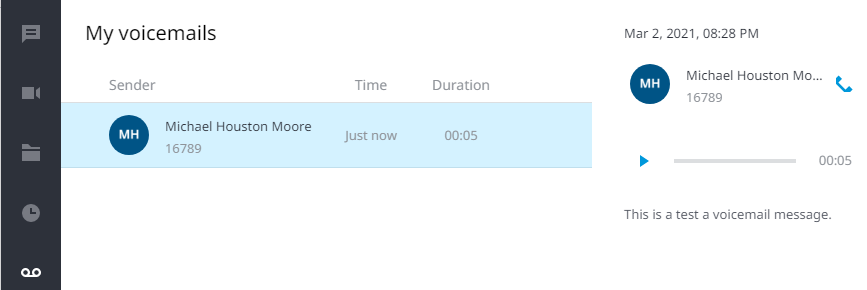
Voicemail tab has a list of received voicemails including who they were from, when, and the duration. Clicking on a voicemail allows you to listen to it, and if your license allows, provides a transcription below the media controls.
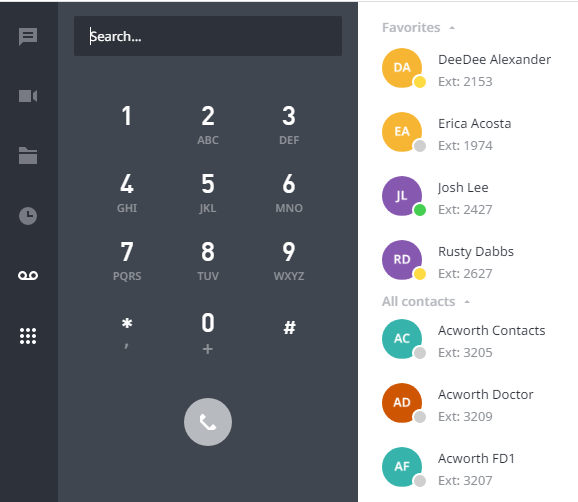
The Dial Pad allows you to either select a contact from your favorited contacts, type in an extension or number (no 9 required for outbound), or search for a contact in the company. If you are using the app as a call controller for a physical phone, when you initiate the call, your desk phone will ring, answering it initiates the actual call to the number you are dialing. If you are using the app as a soft phone, it will initiate the call immediately.
Comments