Before you try to connect to VPN, make sure you have already connected to the Internet, either with Wi-Fi or with a network cable.
Cisco AnyConnect is the VPN client we use; it should be installed on any laptop MEC supplies when you get it. You will need to run it either from a shortcut on the desktop, or if it is not there, then from your start menu, under the Cisco folder.
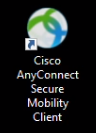
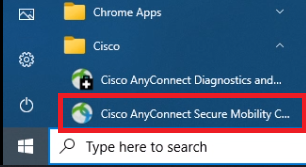
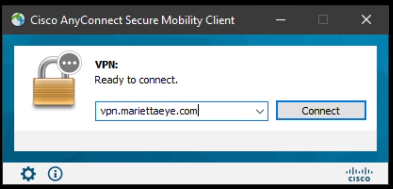
The first time you run it, it will not have the server entered. You will need to type the server’s name “vpn.mariettaeye.com”, then hit Connect.
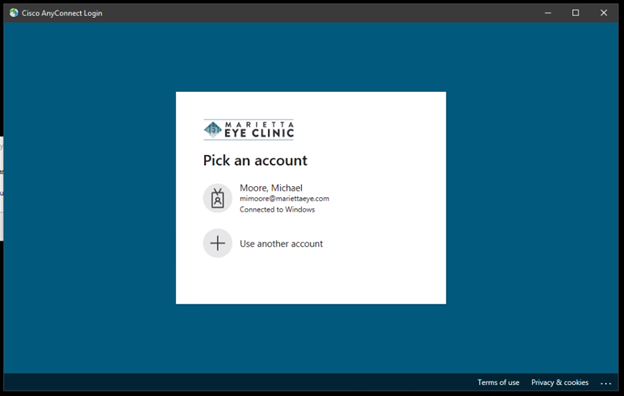
The following window will appear to authenticate you. It may already have your username in the list, at which point you can click it and login with your password (the same as email/windows). You may be prompted to authenticate further with a Multi-Factor Authentication (MFA) code that will be texted or emailed to you depending on how you set it up. If you haven’t set up MFA yet, it will walk you through that.
If there are updates to the VPN client or policies, you may see a message indicating the client is being updated, this is normal, and it will do it automatically. Once done it will reconnect and the window will disappear.
You can verify you are connected to VPN by looking by the clock for the VPN icon with the lock, the lock indicates you are connected.  Sometimes you may have to click the arrow to the left of the clock to see all the icons.
Comments